
VIDEO MANAGEMENT SOFTWARE

Description:
Video Management Software (VMS) is an application that runs on a Network Video Recorder (NVR) built using Renesas RZ/Gxx platforms. VMS supports the various functionalities of NVR, like configuration, management, and video streaming through the Graphical User Interface (GUI) developed using LVGL **
** LVGL (Light and Versatile Graphics Library) is a free and open-source C graphics library providing everything to create an embedded GUI with easy-to-use graphical elements, visual effects, and a low memory footprint.
Highlights:
- Real-Time / Live View - Display live video streams in real-time on an HDMI display
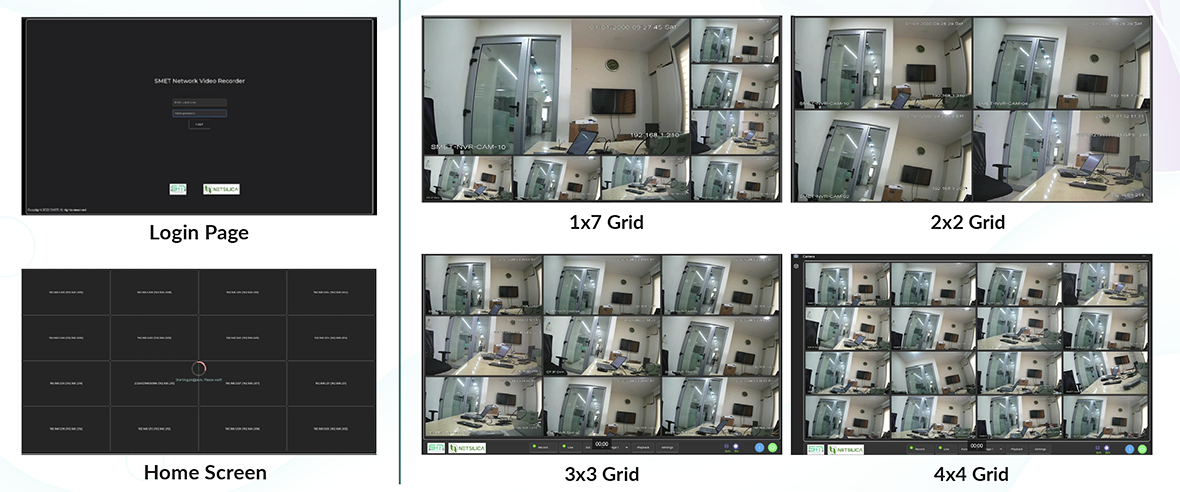
- Flexible Layout - Support various layout configurations for live view, such as 1x1, 2x2, 3x3, 1x7 and auto layout.
- Dynamic Camera Management - Add or remove cameras on-the-fly in live view without affecting other camera streams.
- Playback - Capable of playing back recorded streams.
- Overlay Widgets - Render text over video using widgets (e.g: camera names, GPS co-ordinates)
- Window Sequencing - Arrange camera for live view based on a time-based sequence within the same window tile.
- Decoding Capacity - 1 x 4K@30fps, 4 x2MP@30fps, 16 x D1@30fps. (Specific to Mobile NVR Requirements)
- Video Search - Able to Search Video Streams based on Date & Time.
- Indicators – Disk Usage and CPU usage is displayed.
- ONVIF Compliance - VMS Client developed on RZ/Gxx platforms is fully compliant to ONVIF Client (Profile S and T) specifications for RTSP streaming over IP network.
NVR Provisioning:
When the NVR is booted first time or factory reset, the user will be forced to enter the default credentials and login to the NVR provisioning wizard.
Features:
- Live View
- Layouts 1x1, 1x7, 2x2, 3x3, 4x4 and Auto layout
- Page switching
- GPS Coordinates updates (dummy)
- Friendly name
- Search, playback and export
- Recording
- Configurable clip duration
- Disk Monitoring
- ONVIF Compliance
- Settings
- Camera Settings
- NVR Settings
- Security
- Secure Boot
- Secure factory reset
- Data Encryption
- Integrity and authenticity of the exported clips
- USB device lock to deny unauthorised access
Login Page - Home Screen Different Layouts of NVR
- Recording
- Recording starts by default at app launch and continues after logout.
- Playback
- Support for multiple playback sessions
- Pause and seek bar functionality.
- Search and export based on a specific camera.
- Export/Storage
- Sign the exported video clips for authenticity and integrity verification
- Handle multiple disks connected and enable storage in a single logical volume
Camera Settings
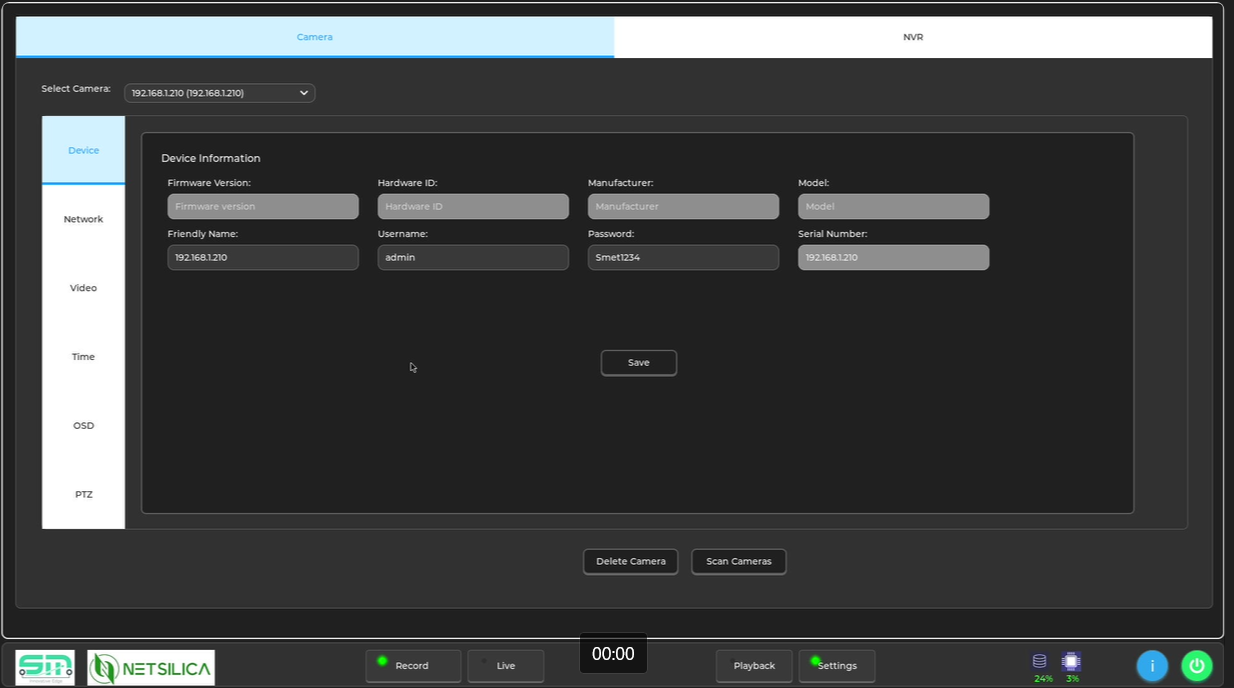
- Device Information
- The system will display the camera’s manufacturer name, firmware version, and model.
- The username, password, and friendly name can be updated on the fly.
- Primary and Auxiliary settings
- The Decoder - H.264 or H.265, resolution, frame rate, and bit rate can be modified on the fly.
- The system displays the camera URL, port, and protocol.
- Time
- The time for a specific camera can be set on the fly.
- OSD (On-screen Display
- The default GPS information and serial number will be overlaid.
- The position of the text overlay can be adjusted on the fly.
NVR Settings
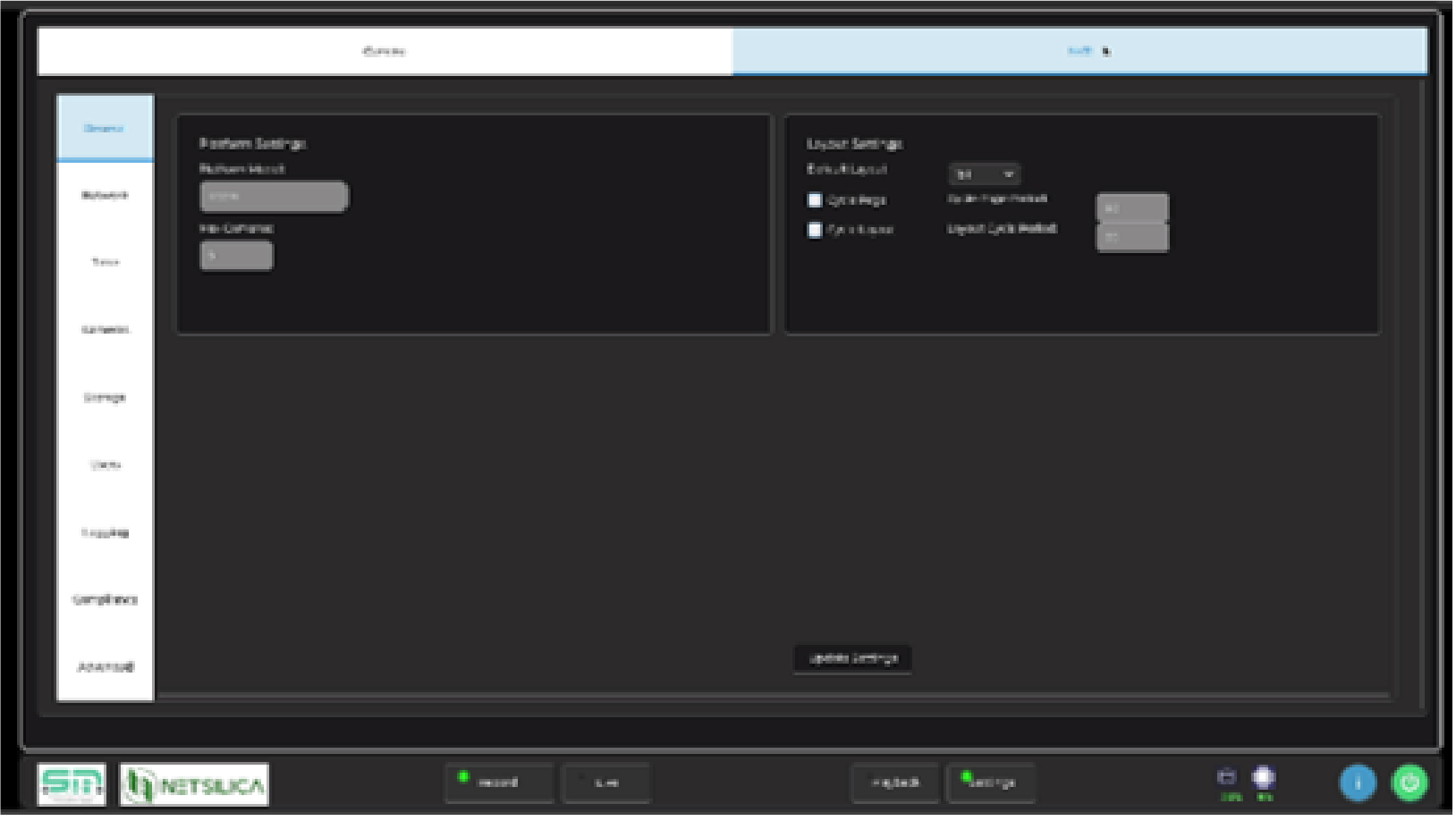
- General
- The default layout can be configured.
- Flexibility to enable or disable the cyclic page and cyclic layout on the fly.
- Time
- NVR time can be set on the fly.
- Camera Management
- All Cameras have the options to modify the username, password, encoder, frame rate, resolution, and bit rate.
- Online/offline status monitoring is supported, with detection and handling based on a configurable interval.
- GPS information can be fetched from the module/camera every 60 seconds.
- Factory Reset
- Implemented factory reset to wipe the device data partition, recording partition and take the device to factory default state.
- Storage
The user can delete recordings when disk free space is low.
The available deletion options include:
- Auto roll-over: Initial recordings will be deleted.
- Export and Delete: Deletes recordings that have already been exported.
- Delete based on time: Removes recordings according to a specified time range or duration.
- Delete All: Deletes all stored recordings.
- Recording Clip Setting
- The secure option for the user data partition can be enabled or disabled.
- User Management
- The admin user is required to change the password upon first login.
- User roles (e.g., Admin, User, Guest) can be added and managed, and camera permissions can be customized for each role.
- Loggings
- Different debug levels can be configured to capture logs.
- ONVIF Compliance Checker
- “Compliance” tab inside the “Settings” screen, is provided to the User to verify the compliance of an ONVIF camera.
- Application will run the few tests and displays the final results.